
Metrics and Attributes Setup for Tracker
This guide details how to configure metrics and attributes to effectively utilize data collected by the CustomerScore Tracker. While the Tracking Code Setup covers the implementation of the script, this article explains how that raw data is processed, mapped, and visualized.
How it works
Once the Tracker is successfully configured, data collection begins. To make this data actionable within CustomerScore, it must be mapped to specific Metrics or Attributes.
- Data Collection Methods: Events can be collected via the client-side JavaScript Tracker or sent server-side via the API endpoint (allowing for batches of events).
- Data Aggregation: Events collected are aggregated once a day. Events are aggregated as 30-day rolling summary (sum of event occurrences from last 30 days).
- Merging Data: Tracked data is merged with other existing data sources and displayed on the corresponding Contact or Customer entity.
- Entity Creation: Contacts are automatically created by the Tracker if they are new. However, Customers are not created by the Tracker; the Customer entity must already exist in the Customerscore app for the data to be processed.
- Filtering: Only events and data that have a corresponding metric or attribute configured in the system are merged. Unmapped events are effectively ignored during the merge process.
- Mapping via Codename: The link between the code and the dashboard is the codename. The codename field in your metric/attribute configuration must match exactly the event name or the data key sent by the tracker.
- Supported Types: Currently, the tracker supports number and string data types.
- Scope: You can track events at the Contact level or Customer level.
- Grouped Metrics: On the Customer level, you can set up a "Grouped metric." This counts all events of a given name associated with the Customer, even if specific contact information is missing.
Important Configuration Notes
Before you begin setup, please keep these two critical points in mind to ensure your data appears correctly:
Data Latency: Because data is aggregated daily, you will not see data immediately after setup. Please allow up to 24 hours for the first batch of events to appear in your metrics.
Case Sensitivity: The Codename field is case-sensitive. If your code sends an event named new_Order, but your metric codename is new_order, the data will not match. Ensure your naming is consistent.
Where to Configure
You can configure these settings in the Settings menu. Define your metrics and attributes based on the level (Customer vs. Contact) you wish to track:
- Settings > Metrics > Customer metrics
- Settings > Metrics > Contact metrics
- Settings > Attributes > Customer attributes
- Settings > Attributes > Contact attributes
💡 Tip: You can set up Metrics and Attributes when there are some tracked data directly on the Tracker page:
1. Navigate to Settings > Tracker, section Metrics and Attributes (https://app.customerscore.io/settings/tracker)
2. Review a list of currently tracked events to create Metrics for customer or contact
3. Review a list of Customer/Contact data to create Attributes for customer or contact
When creating a Grouped Metric (a Customer metric that aggregates contact-level events), checking the "Grouped metric" box allows you to select the underlying contact metric from a dropdown list.
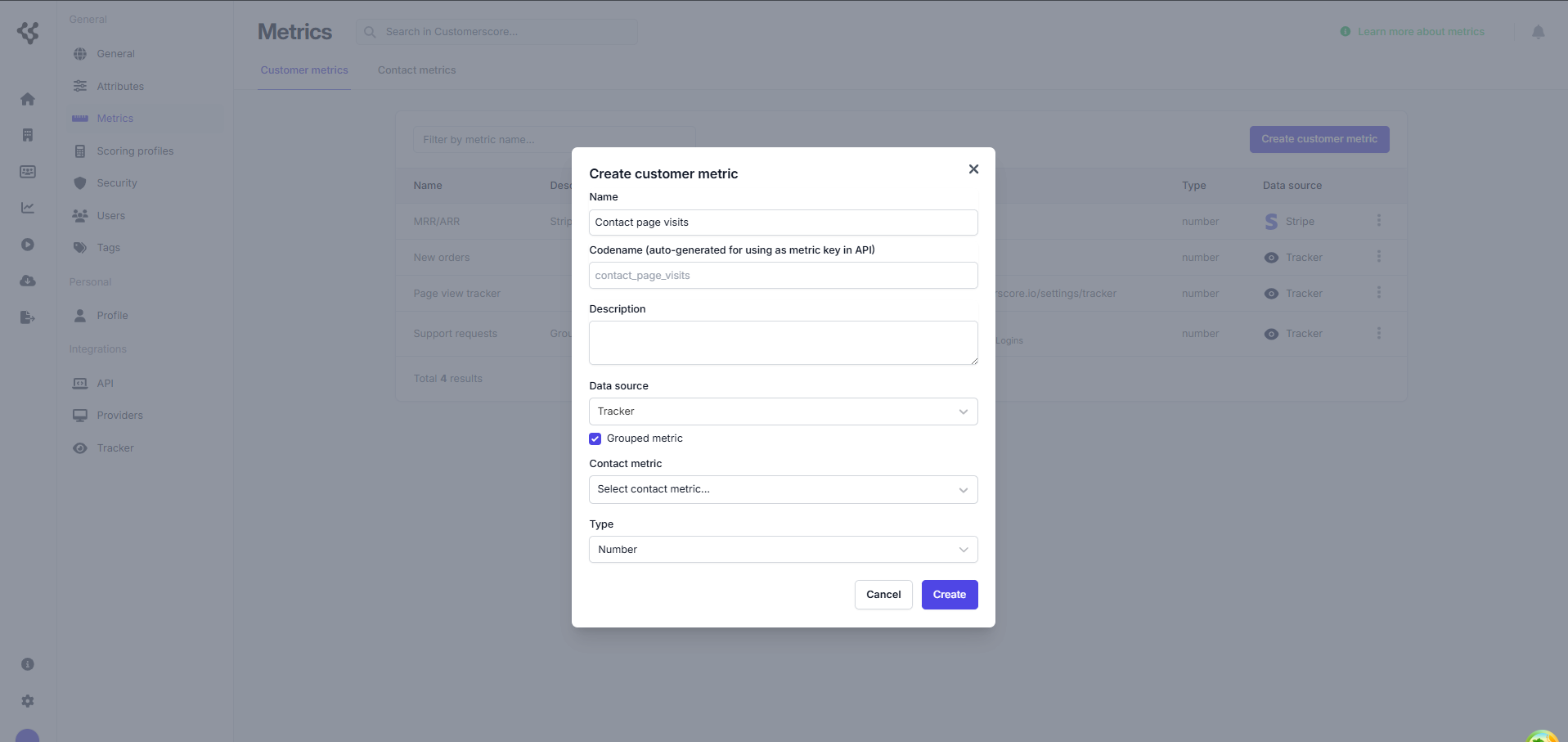
Example Configuration
To illustrate the setup, let's look at a standard scenario where we want to track user identification details, specific page visits, and new orders.
1. Events sent by Tracker code (or API)
Below represents the raw events and data keys being sent from your application via the CustomerScoreTracker methods (like .identify() and .track()).
Identify Call
- Event:
identify - Additional Data:
contact_name,email
Page Views (Hard or Soft Navigation)
- Event:
page view - URL Context:
example.com(Homepage) - URL Context:
example.com/contact-form - URL Context:
example.com/special-request
Custom Event
- Event:
new_order(Tracked via.track()method, sent after user identification) - Additional Data:
contact: {order_value: 100}
2. Configured Metrics and Attributes
To capture the data above, you would configure the following mappings. Note how the Codename corresponds to the event names or data keys from the code.
Contact Metrics (Source: Tracker)
These metrics count how many times a specific event occurred for a contact.
| Metric Name | Codename | Type | Description |
|---|---|---|---|
| Login | identify |
Number | System metric counting identify calls. |
| Homepage visits | example.com |
Number | Counts views of the homepage. |
| Contact form visits | example.com/contact-form |
Number | Counts views of the contact form. |
| Orders | new_order |
Number | Counts occurrences of the new_order event. |
Contact Attributes (Source: Tracker)
These attributes store specific values sent alongside events.
| Attribute Name | Codename | Type | Description |
|---|---|---|---|
| Contact name | contact_name |
String | System attribute for the name. |
email |
String | Stores the contact email. | |
| Last order value | order_value |
Number | Stores the value from the new_order event. |
Customer Metrics (Source: Tracker)
These metrics aggregate data at the company (Customer) level.
| Metric Name | Codename | Type | Description |
|---|---|---|---|
| Special request visits | example.com/special-request | Number | Counts visits to the special request page. |
| Orders count | orders | Number | Grouped metric. Linked to the Contact Metric "Orders". Counts all new_order events for the customer, including those without specific contact info. |